Link Grain Trade Australia Location Differentials to your Storage Sites
You need to be a member of Grain Trade Australia (GTA) to set up your inventory freight differentials. You need to download the GTA Location Differentials Excel workbook containing the data for each State you are interested in, from the GTA website. Make a note of the location you save the file to for reference later.
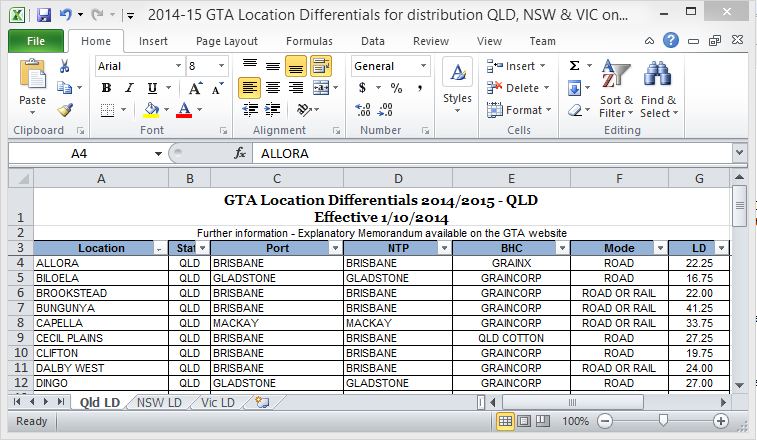
At the time of writing, this is what a portion of the GTA Workbook looks like:
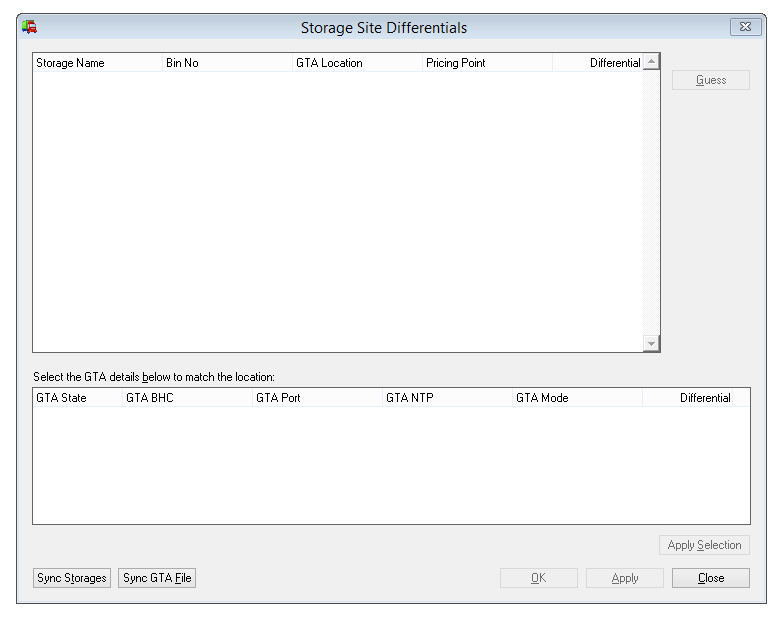
Open the Storage Site Differentials window from the View | Storage Site Differentials menu. Initially the grids will be empty, because you haven't loaded any data yet.
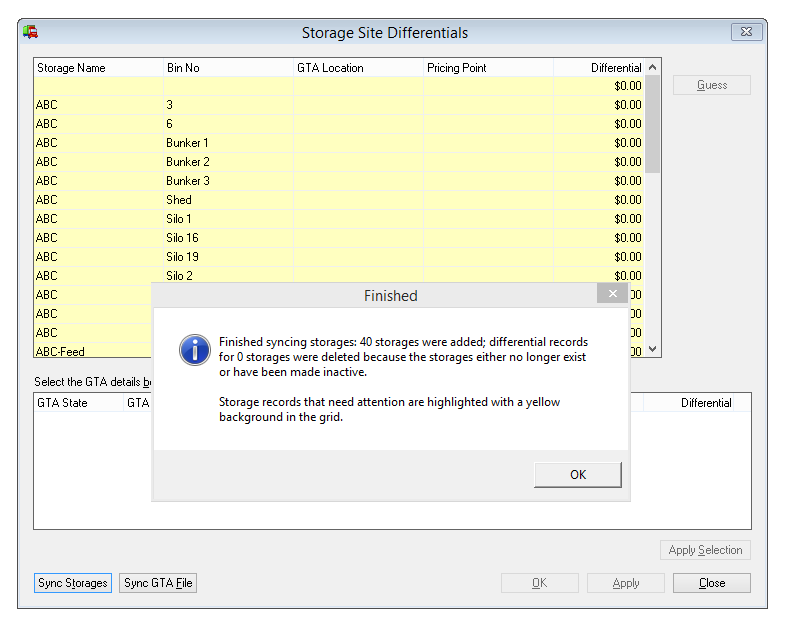
Begin by clicking the Sync Storages button. The program will load all your unique storage site names (omitting storages that are marked as “Not Owned”) into the upper grid. Storage records that need attention because they haven't been assigned a differential will be highlighted with a yellow background, so initially all the rows will be so highlighted. You will be advised how many records were added or deleted.
Click Apply to save any changes to the database and keep the window open, or OK to save the changes and close the window. You should click the Sync Storages button whenever your storages have changed.
Then click the Sync GTA File button. The Import from Excel window will be displayed.
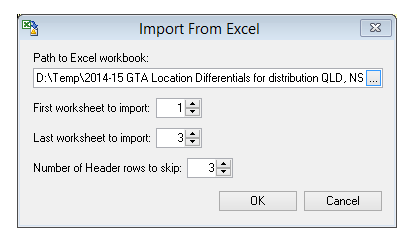
Browse to the location where you saved the GTA download file. Normally the number of header rows in the Excel worksheet(s) will be 3, but you may need to adjust this after looking at the file in Excel. Depending on how many States' data are included in the file, adjust the First and Last worksheet numbers. The first (left-most in the worksheets tab) worksheet in the workbook is number 1. Click OK when ready and the program will import or synchronise the GTA data. At this point, if this is not the first time you have performed this procedure, the Differentials for any Storages you have previously cross-referenced will be updated to the values from the GTA workbook just imported. You will be advised how many new GTA records were found or existing ones that no longer exist were deleted. Again, if any storage records need attention after this procedure they will be highlighted with a yellow background.
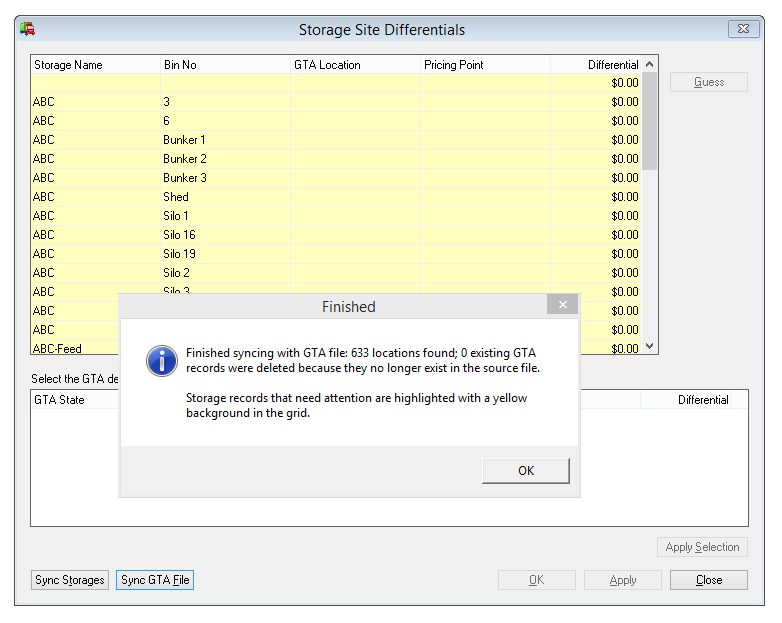
Click Apply to save any changes to the database and keep the window open, or OK to save the changes and close the window. You should click the Sync GTA button whenever your Storages have changed or GTA releases a new workbook.
For each storage record needing attention, as indicated by the yellow highlight, you then need to select the GTA Location and GTA Pricing Point. The program will then use this to retrieve the GTA freight differential for that site and GTA Pricing Point. This needs to be done only once for each site, unless you want to change for example the Bulk Handler or Pricing Point for that storage in the future.
The easiest way to select the correct GTA record for a site is to select the row by clicking in any cell in it then click the Guess button, or press Alt-G. The program will attempt to find a GTA Location that matches your storage, using either its Name or Bin No. If it can find one, it also attempts to match the Bulk Handler (eg Graincorp), again using your storage's Name or Bin No. This means that within Grain Trader you can use either convention of the location as the name and Bulk Handler as the Bin No, or vice-versa.
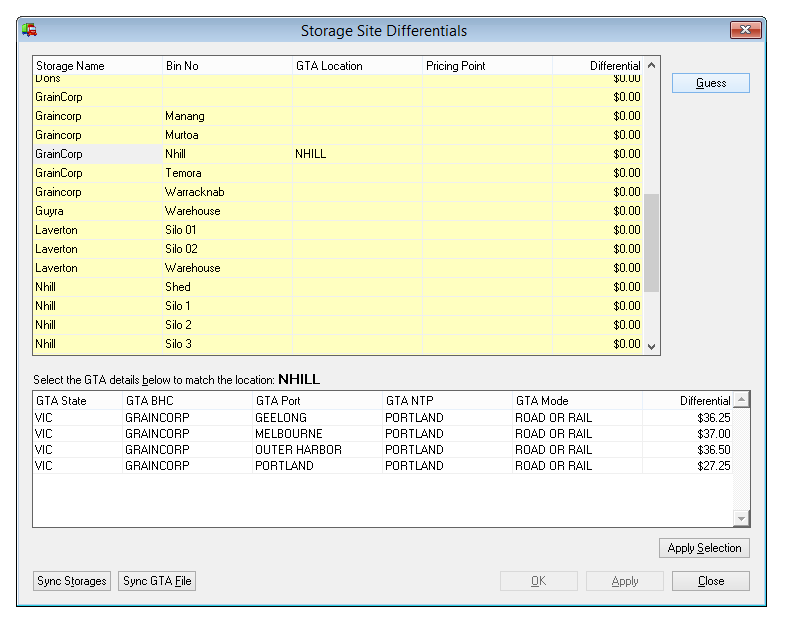
Any possible matches are displayed in the lower grid, with the most-likely one based on the above, if any, pre-selected. You can accept this by simply clicking the Apply Selection button or just pressing Alt-S. Otherwise, move to the desired row in the lower grid using either the arrow keys or mouse, then either double-click the row, click Apply Selection or press Alt-S.
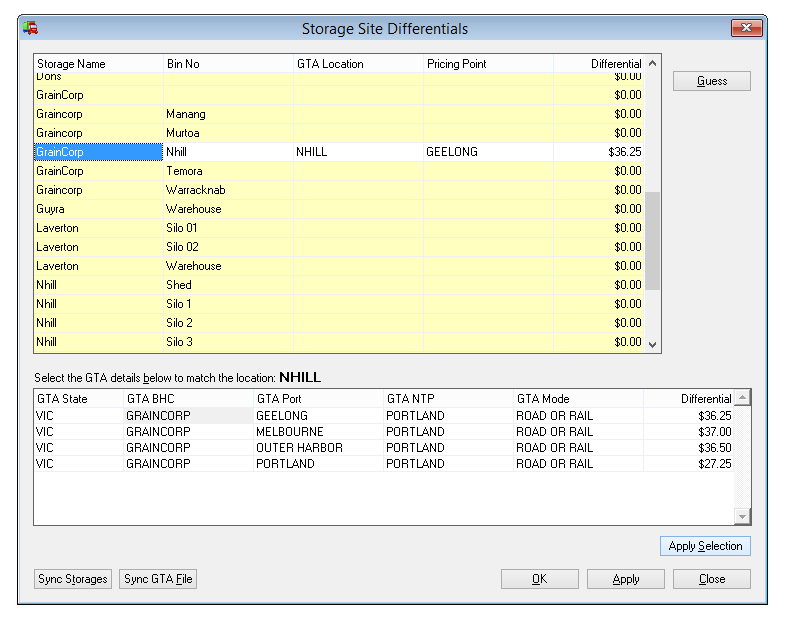
If the Guess function doesn't find any possible matches, just select the desired GTA Location directly from the drop-down box in the appropriate cell in the upper grid. If you just start typing in the cell the program will try to find locations starting with those characters. In that case, click or press <ENTER> to confirm your location selection. Again, select the desired GTA record in the lower grid and either double-click its row, click Apply Selection or press Alt-S.
You can also if needed select a GTA Pricing Point manually using the drop-down box in the upper grid, and/or enter or change the value in the Differential cell for each row. However you should be aware that future updates of the GTA file might overwrite any changes you make in this way, so it's always better to select from the GTA standard records.
